


How to Install Serum 2 Presets (Mac & Windows) – Complete Beginner Guide

  • By Tech House Market

Published: January, 2026

Installing Serum 2 presets is simple once you know the correct folder,  but doing it wrong is the number one reason presets don’t show up in the Serum browser.

This guide shows the correct, up-to-date way to install Serum 2 presets, explains why each step matters, and helps you avoid the common mistakes that cause preset packs to fail.
 

Serum 2 uses a folder-based preset system (not legacy .fxp files), so following the exact structure is critical.

Jump to section quickly:

What’s Different About Serum 2 Presets

Open the Correct Serum 2 Presets Folder

Navigate to the User Presets Folder

Install the Preset Pack

Refresh Serum 2

Common Mistakes & Fixes

Best Practices

FAQ – Serum 2 Presets

Title

What’s Different About Serum 2 Presets?

Serum 2 does not use legacy .fxp preset files.

Instead, Serum 2 uses:

  • Folder-based preset packs
  • Structured directories
  • A dedicated User folder for custom presets

If presets are placed outside this system, Serum 2 will not detect them, even if the preset files themselves are valid.

This is why installing presets correctly matters more in Serum 2 than in older versions.

Step 1: Open the Correct Serum 2 Presets Folder (Required)

Never guess where to install presets.
Always let Serum 2 show you the exact folder it scans.

  1. Open your DAW
  2. Load Serum 2 on an instrument track
  3. Click Menu (top-right corner)
  4. Select Open Serum 2 Presets Folder

This ensures:

  • You’re using the correct directory
  • Presets appear immediately
  • You avoid duplicate or broken installs

Step 2: Navigate to the User Presets Folder

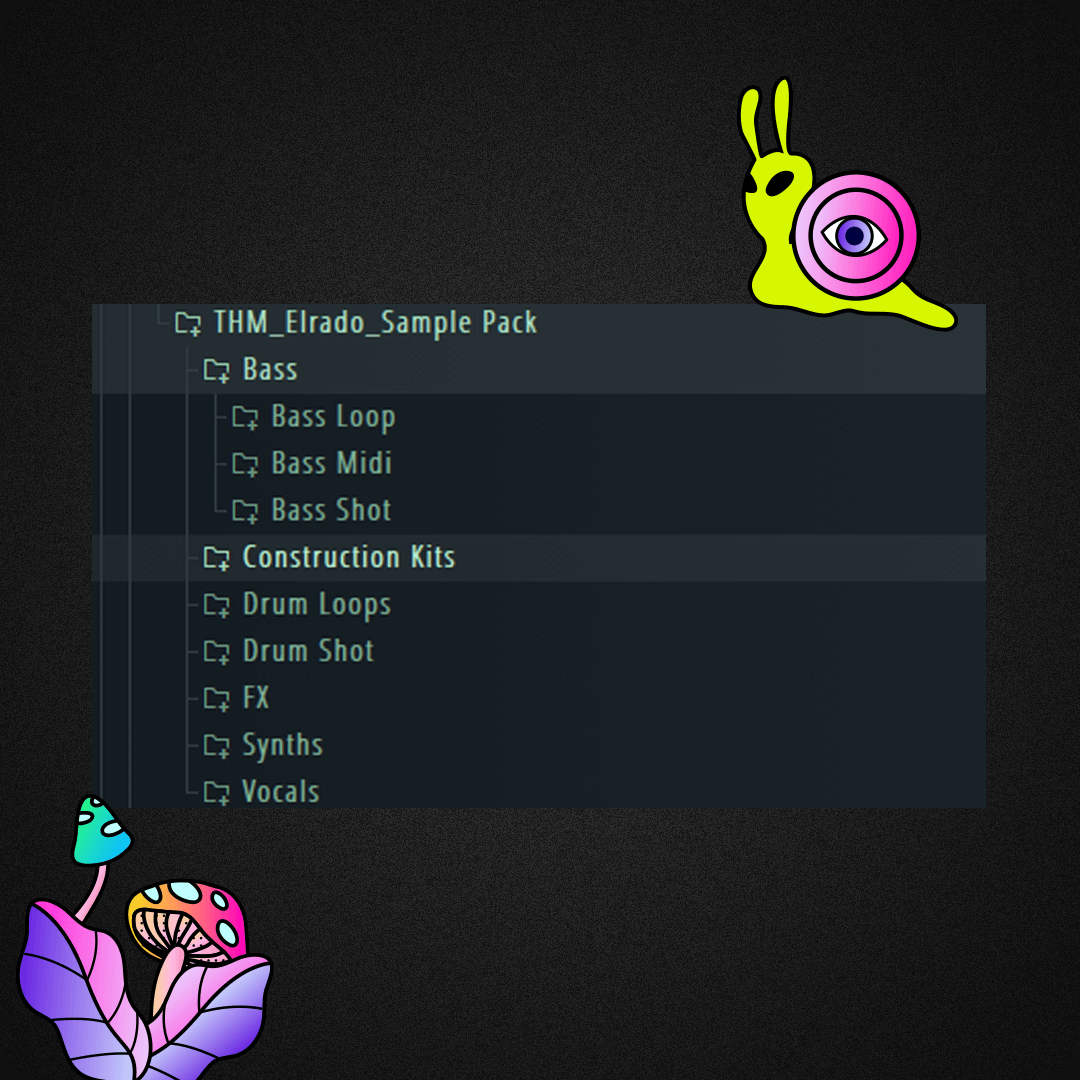
Inside the folder Serum opens, follow this structure:

Serum 2 Presets
→ Presets
→ User

The User folder is where all third-party and custom preset packs must be installed.

You may already see folders like:

  • Freebies
  • THM
  • Other custom packs

This is correct and expected.

Step 3: Install the Preset Pack (Correct Method)

  1. Unzip the preset pack you downloaded
  2. Take the entire preset folder (do not open it)
  3. Drag that folder directly into:

Presets → User

Correct structure:

Presets
→ User
→ YourPackName
→ Presets
 

Important rules:

  • Do not drag individual files
  • Do not rename internal folders
  • Do not rearrange files inside the pack

Serum 2 relies on the original folder structure to load presets properly.

Step 4: Refresh Serum 2

After installing the presets:

  1. Go back to Serum 2
  2. Click Menu
  3. Select Rescan Folders on Disk

If presets still don’t appear:

  • Restart your DAW

Your presets will now appear in the Serum 2 browser under User.

Common Mistakes (Why Presets Don’t Show Up)

Most issues come from one of these:

  • Installing presets outside the User folder
  • Dragging individual preset files instead of the full folder
  • Using Serum 1 .fxp presets
  • Renaming internal preset folders
  • Leaving preset packs zipped
  • Installing nested folders (Pack → Pack → Presets)

If any of these happen, Serum 2 will ignore the presets.

Best Practices for Serum 2 Presets

Best Practices for Serum 2 Presets

Follow these and you’ll avoid problems long-term:

  • Keep one folder per preset pack
  • Never rename internal files or folders
  • Always unzip before installing
  • Back up your Serum 2 Presets folder occasionally
  • Use clear pack names (example: THM Tech House Vol. 1)

FAQ – Serum 2 Presets

Do Serum 2 presets work in all DAWs?

Yes. Serum 2 presets work in Ableton Live, FL Studio, Logic Pro, Studio One, Cubase, and any DAW that supports VST/AU plugins.

Can I use Serum 1 presets in Serum 2?

No. Serum 2 does not support legacy .fxp presets. Presets must be made specifically for Serum 2.

Why don’t my Serum 2 presets show up after installing them?

This usually happens because:

  • The presets were installed outside the User folder
  • The preset pack is still zipped
  • The folder structure was altered
  • Serum was not rescanned after installation

Always use Menu → Open Serum 2 Presets Folder to confirm the correct location.

Can I organize Serum 2 presets into my own folders?

Yes. You can create subfolders inside the User folder (for example: Bass, Leads, FX).
However, you should not rename or restructure folders inside a preset pack, as this can break presets.

Are Serum 2 presets royalty-free?

Yes. Most third-party Serum 2 presets are royalty-free for use in your own productions. Always check the license included with the pack to be sure.

Using Serum 2 Presets for Tech House

Once installed correctly, presets should load exactly as designed.

If you’re producing tech house:

  • Focus on clean low-end bass presets
  • Avoid over-layering
  • Let groove and rhythm do the work

Well-designed presets speed up workflow without sacrificing originality.

Final Tip (Save This)

If presets ever “disappear,” don’t reinstall Serum or your DAW.

Just remember:

Menu → Open Serum 2 Presets Folder

That single option solves most issues instantly.

Using Serum 2 for house music production?

If you’re using Serum 2 for tech or house productions, Tech House Market Serum 2 presets are designed to install and work exactly as shown in this guide.
Browse the collection.